Search This Blog

Showing posts with label Hard Reset. Show all posts

Monday, February 16, 2015

How to Hard Reset an iPhone

Like all computers, the Apple iPhone occasionally needs a reboot. You can do this by giving it a "soft reset". This does not remove app, songs, contacts or anything else stored on your iPhone. It basically just reboots the phone without following the normal shutdown procedures.

There is different procedure to do a full "hard reset" and this will remove everything and restore your iPhone to its factory settings.

Both procedures are outlined below.
Hard Reset an iPhone Step 1 Version 2.jpg
1
Press and hold the Home button (big circle below the screen) and the Sleep/Wake button (on top of the iPhone) simultaneously


Hard Reset an iPhone Step 2 Version 2.jpg
2
Continue holding both buttons until the iPhone shuts off and begins to restart. This will take anywhere from 10-20 seconds.
    Hard Reset an iPhone Step 3 Version 2.jpg
  • Assuming your iDevice isn't totally crashed and unresponsive, you will be offered the ability to power off at this point. If you take that option, remember to turn your phone back on when you are done. Alternatively, you can ignore the power off request and continue holding continue following the steps below
  1. 3
    You may let go when you see the silver Apple logo. You have now completed the soft reset successfully.Hard Reset an iPhone Step 4 Version 2.jpg4
  2. Don't be alarmed that it takes quite a while to load from the Apple logo to the main screen. This is normal
  1. Hard Reset an iPhone Step 5 Version 2.jpg
    1
    Go to "Settings"


Hard Reset an iPhone Step 6.jpg
  1. 2
    Select "General"
  2. Hard Reset an iPhone Step 7.jpg
    3
    Scroll down to select "Reset". Here you will have various options, the main ones being:
    • Reset All Settings
    • Reset Network Settings
    • Erase All content and Settings
  3. Selecting "Erase All Content and Settings" is what constitutes a Hard Reset. Your phone will ask you to enter your passcode, and will then ask to confirm.

Monday, February 9, 2015

How to Easily Master Format SONY XPERIA T2 ULTRA / T2 ULTRA DUAL (D5303 / D5306 / D5316 / XM50t / D5322 / XM50h) with Safety Hard Reset?

Tips and tricks for solve SONY XPERIA T2 ULTRA (D5303 / D5306 / D5316 / XM50t) problems. For users who would like to have bigger LCD screen smartphone, but does not like to have tablet which much more bigger for daily usage, then we can choose 6 inches phablet from Sony which have name SONY XPERIA T2 ULTRA, this phone have several specification model with code name Tianchi or D5303 or D5306 or D5316 or XM50t for some little different at network function, but all Sony Xperia T2 Ultra have minimum 3G GSM HSDPA Network data connection. Although some of high spec Sony smartphone has waterproof and dust-proof capabilities, but this phone does not have that functions, so please remember to stay away from water. There are also SONY XPERIA T2 ULTRA DUAL which have dual simcard GSM slot ON together, the code name for SONY XPERIA T2 ULTRA DUAL are Tianchi or  D5322, XM50h.

What is Advantage of SONY XPERIA T2 ULTRA (D5303 / D5306 / D5316 / XM50t) & XPERIA T2 ULTRA DUAL (D5322 / XM50h) Specifications:
GSM 3G HSDPA and 4G LTE
LCD 6 inches touch screen with Triluminos display
Mobile BRAVIA engine 2
Internal memory 8 GB
RAM 1GB
External memory microSD, up to 32 GB
Main Camera 13 MP, 4128 x 3096 pixels, autofocus, LED flash
Front camera 1MP for Video conference
Processor Quad-core 1.4 GHz Qualcomm
GPU Adreno 305
Operating system Android OS, v4.3 (Jelly Bean) can be upgrade to v4.4.2 (KitKat)
Battery Li-Ion 3000 mAh

How to Fix or Problem Solving for Recovery SONY XPERIA T2 ULTRA (D5303 / D5306 / D5316 / XM50t) & XPERIA T2 ULTRA DUAL (D5322 / XM50h) hang or not responding or malfunctions or stuck or freezing or bricked ?
For better performance of Android smartphone, the SONY XPERIA T2 ULTRA (D5303 / D5306 / D5316 / XM50t) & XPERIA T2 ULTRA DUAL (D5322 / XM50h) have 1MB RAM and Quad Core processor with 1.4Ghz clock speed. We can install several applications from Google Play Store. But we have to know that not all applications are compatible with our SONY XPERIA T2 ULTRA (D5303 / D5306 / D5316 / XM50t) & XPERIA T2 ULTRA DUAL (D5322 / XM50h), some applications also contain bad script that can make our phone become trouble like hang or bricks or broken or frozen or blank or boot loop or LCD touch screen not responding. At this situations we need to force soft reset or force reboot to clean up temporary files or caches that can make our phone become trouble. If the SONY XPERIA T2 ULTRA (D5303 / D5306 / D5316 / XM50t) & XPERIA T2 ULTRA DUAL (D5322 / XM50h) still get the same problem, then we should have to do hard reset or master format. But please always do backup before doing hard reset or master format, because all data and installed applications will be removed or wipe from this phone when hard reset process finish.

How to Soft Reset or Reboot or Restart SONY XPERIA T2 ULTRA (D5303 / D5306 / D5316 / XM50t) ?
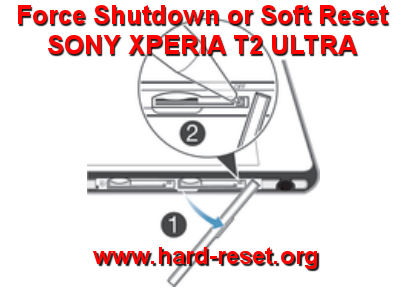
When our SONY XPERIA T2 ULTRA & XPERIA T2 ULTRA DUAL get trouble in the middle of running applications and the LCD not responsive with our finger touch, then we should have to force soft reset or force reboot or force restart to delete any temporary files or caches from internal memory. There is a small reset button pin hardware which located beside micro SIM card location, near the headphone jack. We will find small reset button pin and should press with small stick like paper clips or something like that. Press and hold several seconds that small button until the phone turn OFF or Shutdown Completely. After that we can press POWER BUTTON again to turn on the SONY XPERIA T2 ULTRA (D5303 / D5306 / D5316 / XM50t) & XPERIA T2 ULTRA DUAL (D5322 / XM50h). This process is safe to do anytime because it will not remove or wipe or delete any important data, just restart the phone and remove some temporary files which usually created by the applications.

#Option 1, Hard Reset SONY XPERIA T2 ULTRA (D5303 / D5306 / D5316 / XM50t) & XPERIA T2 ULTRA DUAL (D5322 / XM50h) with Software Menu :
  1. Make sure the battery is charge properly
  2. Turn on SONY XPERIA T2 ULTRA (D5303 / D5306 / D5316 / XM50t) & XPERIA T2 ULTRA DUAL (D5322 / XM50h) smartphone
  3. Don’t forget to backup all important data
  4. Go to menu: Setting > Backup & reset > Factory Data Reset > Reset Phone
  5. Choose Erase everything to continue and confirm you ready to do the format SONY XPERIA T2 ULTRA (D5303 / D5306 / D5316 / XM50t) & XPERIA T2 ULTRA DUAL (D5322 / XM50h)
  6. The SONY XPERIA T2 ULTRA (D5303 / D5306 / D5316 / XM50t) & XPERIA T2 ULTRA DUAL (D5322 / XM50h) will continue the step until ready to use in clean factory default.

#Option 2, Hard Reset SONY XPERIA T2 ULTRA (D5303 / D5306 / D5316 / XM50t) & XPERIA T2 ULTRA DUAL (D5322 / XM50h) with Flashtool applications:
  1. Flashtool in the applications from Sony can be download from Sony website.
  2. Flashtool software need to installed in you computer and ready with USB data cable
  3. Make sure SONY XPERIA T2 ULTRA (D5303 / D5306 / D5316 / XM50t) & XPERIA T2 ULTRA DUAL (D5322 / XM50h) battery is charge properly or full charge
  4. Power off SONY XPERIA T2 ULTRA (D5303 / D5306 / D5316 / XM50t) & XPERIA T2 ULTRA DUAL (D5322 / XM50h)
  5. Boot SONY XPERIA T2 ULTRA (D5303 / D5306 / D5316 / XM50t) & XPERIA T2 ULTRA DUAL (D5322 / XM50h) to flashmode with using: Volume Down Button and connect to USB cable at No.1 above
  6. Follow the menu at you computer display, it is easy to understand the steps.

#Option 3, Hard Reset SONY XPERIA T2 ULTRA (D5303 / D5306 / D5316 / XM50t) & XPERIA T2 ULTRA DUAL (D5322 / XM50h) with Hardware Key Button:
  1. Make sure the battery fully charge
  2. Do not forget to backup all important data
  3. Turn off the SONY XPERIA T2 ULTRA (D5303 / D5306 / D5316 / XM50t) & XPERIA T2 ULTRA DUAL (D5322 / XM50h)
  4. Press and Hold together: Power Button + Volume Up Button for several seconds
  5. Follow the menu at LCD screen to continue the hard reset SONY XPERIA T2 ULTRA (D5303 / D5306 / D5316 / XM50t) & XPERIA T2 ULTRA DUAL (D5322 / XM50h)

#Option 4, Hard Reset SONY XPERIA T2 ULTRA (D5303 / D5306 / D5316 / XM50t) & XPERIA T2 ULTRA DUAL (D5322 / XM50h) with PC Companion Software from Computer
  1. Please Make Sure the Battery not Empty
  2. PC Companion is default applications for Sony Smartphone which can be download from Sony Website
  3. After install at our computer, open PC Companion Applications
  4. Before connect to phone, please choose Phone Update and follow several step at PC Companion
  5. At some menu, PC Companion will tell us how to connect the phone with PC Companion using USB cable and press the Volume Down button
  6. Finish the PC Companion step and until it doing Factory Reset to SONY XPERIA T2 ULTRA (D5303 / D5306 / D5316 / XM50t) & XPERIA T2 ULTRA DUAL (D5322 / XM50h) to factory default Android operating system.

How to Restore and Reinstall Clean Android Operating system / firmware at SONY XPERIA T2 ULTRA (D5303 / D5306 / D5316 / XM50t) & XPERIA T2 ULTRA DUAL (D5322 / XM50h) ?
When the first time we buy SONY XPERIA T2 ULTRA & XPERIA T2 ULTRA DUAL, this phone ship with Android Jelly Bean v.4.3.  If after use several time the operating system damage or trouble then we need to reinstall or restore clean factory default Android operating system. We should know that the factory default operating system file source already saved inside SONY XPERIA T2 ULTRA & XPERIA T2 ULTRA DUAL ROM safely. Therefore we does not need to copy from or connect to other device to do reinstall. Just follow one of several options above to do hard reset, then the factory default operating system or firmware will be reinstall or restore automatically.

How to Unlock or Fix or Bypass or Solutions for SONY XPERIA T2 ULTRA (D5303 / D5306 / D5316 / XM50t) & XPERIA T2 ULTRA DUAL (D5322 / XM50h) forgot password code or security lock screen pattern or pin (lost password)?
If we have many important data or pictures or movies, then we should always give security protections to safe our data while the phone away from us or when the phone is miss from our hand. There are several options that we can use to protect our SONY XPERIA T2 ULTRA & XPERIA T2 ULTRA DUAL. We are recommended to use screen lock pattern security protection for faster and easy unlock when we want to use, but some users also like to use password pin protection. However, the problem happen when we forget the answer of our security protections. But do not worry about this problem, because Android have easy steps to unlock or bypass or open forgotten security protections using Google account or Gmail username and password. Please try to give wrong answer several time until the phone locked or freeze about 30 seconds. At this time we will find Forgot Password / Pattern button, press this button, then SONY XPERIA T2 ULTRA & XPERIA T2 ULTRA DUAL will ask for Gmail account that we have already signed in before. Please make sure the Internet connection active when we want to bypass using Google account. If we can not access Google account, then we have to do hard reset using Hardware Button or PC Companion like options steps above.

How to Improve Performance SONY XPERIA T2 ULTRA (D5303 / D5306 / D5316 / XM50t) & XPERIA T2 ULTRA DUAL (D5322 / XM50h) to make run more faster?
SONY XPERIA T2 ULTRA & XPERIA T2 ULTRA DUAL have quad core with 1.4 Ghz speed. The Internal memory have 1GB for multitasking applications. When we download the applications from Google Play Store, some applications will be keep running in the memory to wait for some update for command to work. Every applications will need some amount of RAM and also processor resources when they run. Therefore if there are too many applications run in the background, then SONY XPERIA T2 ULTRA & XPERIA T2 ULTRA DUAL will run more slowly. Please try to remove or uninstall some not use applications. If we want to make our SONY XPERIA T2 ULTRA & XPERIA T2 ULTRA DUAL run faster again like new, then we have to consider doing hard reset or master format.

Is That Any Secret Code for Doing Format SONY XPERIA T2 ULTRA (D5303 / D5306 / D5316 / XM50t) & XPERIA T2 ULTRA DUAL (D5322 / XM50h) ?
There is no secret hidden code for SONY XPERIA T2 ULTRA (D5303 / D5306 / D5316 / XM50t) & XPERIA T2 ULTRA DUAL (D5322 / XM50h) to make it back to factory default. Do the options above to hard reset it.

How to Upgrade or Update SONY XPERIA T2 ULTRA (D5303 / D5306 / D5316 / XM50t) & XPERIA T2 ULTRA DUAL (D5322 / XM50h) to Android Kitkat or Android L Operating System / Firmware ?
Now, we can upgrade the SONY XPERIA T2 ULTRA & XPERIA T2 ULTRA DUAL operating system with Android Kitkat 4.4 operating system or firmware. The update comes with OTA or Over The Air with Internet connection. Please find the OS update at SONY XPERIA T2 ULTRA & XPERIA T2 ULTRA DUAL using Menu Settings > About phone > Software updates > System updates. Please consider to use Wifi data connection when download the firmware update, because the file size is quite big for use with GSM data network connection. The Android L still not available when we create this information, but we will see later from Sony update information.
The information from this page describe about sony xperia t2 ultra hard reset,Sony t2 ultra hard reset,how to format sony xperia t2 ultra,hard reset sony xperia t2 ultra,sony xperia t2 hard reset,t2 ultra hard reset,what is the password of sony Xperia t2 ultra dual d5322,hard reset sony t2 ultra,hard reset xperia t2 ultra,how to hard reset sony xperia t2. If you need another resource for hard reset, use search function at this homepage or find from our related posts.

How to Easily Master Format LG G2 MINI D618 & D620 with Safety Hard Reset?

Tips and tricks for solving LG G2 MINI D618 & D620 problems. If we are not comfortable using big LCD screen smartphone, then LG also have 4.7 inches LCD screen which fit to our hand and easily save to our pocket, it name LG G2 Mini. The processor use Qualcomm Quad Core 1.2Ghz for fast response and also have 8 megapixel camera for daily capture moment. LG G2 MINI D618 & D620 have 8 GB internal memory with 1GB RAM for multitasking. LG G2 MINI have single SIM card and also available for dual SIM Card GSM & GSM on together for specific type.

Main Advantage of LG G2 MINI D618 & D620 Specifications:
Network 3G HSDPA
LCD 4.7 inches IPS
Processor  Quad-core 1.2 GHz Cortex-A7
Main Camera 8 MP, 3264 x 2448 pixels, autofocus, LED flash
Front Camera  for Video Conference
Operating system Android OS, v4.4.2 (KitKat)
Internal Memory 8 GB
RAM 1GB
External microSD slot up to 32GB
Battery Li-Ion 2440 mAh

How to Fix or Problem Solving for Recovery LG G2 MINI D618 & D620 hang or not responding or malfunctions or stuck or freezing or bricked ?
We can install many applications at our LG G2 MINI D618 & D620 from Google Play Store, because the performance is good for more than standard daily activity. But we need to know, some applications at Google Play Store are not always compatible with our phone. Some applications also created from un-responsible developer so maybe our phone become trouble after download that applications. The problem at our LG G2 MINI D618 & D620 become hang or stuck or bricks or broken or blank or LCD touch screen not responding or boot loop and something like that. We need to do force soft reset or reboot or restart the LG G2 MINI D618 & D620 to clean up any temporary files or cache that can make our phone become trouble. If the problem still happen, then we should have to do hard reset or master format. Please remember, doing hard reset or master format can make all of our important data become wipe or erased from LG G2 MINI D618 & D620. So, we need to do backup first before performing hard reset.

How to Force Soft Reset or Force Reboot or Force Restart LG G2 MINI D618 & D620 ?
Doing soft reset or reboot are recommended to do when the phone act not normal, we can try to force soft reset LG G2 MINI D618 & D620 by open the back case and remove the battery for about 5 seconds. Try to put again the battery at the right position and press power button to turn it on. This steps already finish with doing soft reset or reboot. If our LG G2 MINI D618 & D620 still can access at menu or the touch screen still responsive, then we can do routine soft reset or reboot or restart by press and hold POWER button several seconds until the pop-up menu appear, and choose Reboot / Restart to do soft reset. This reboot process is safe to do anytime, because beside it will try to clean up the temporary files and caches at LG G2 MINI D618 & D620, also the important data and applications still keep safely at the memory.

#Option 1, Hard Reset LG G2 MINI D618 & D620 with software menu
  1. Turn on the LG G2 MINI D618 & D620
  2. Make sure the battery is not empty
  3. Backup important data at LG G2 MINI D618 & D620 because all data and applications will be erase or delete
  4. Go to Menu :  Setting > Backup and Reset > Factory Data Reset
  5. Choose : Reset Phone > Erase everything
  6. The LG G2 MINI D618 & D620 will do the master reset process.

#Option 2, Hard Reset LG G2 MINI D618 & D620 Factory Default using Hardware Secret Button Key
If we can not go to menu, or LG G2 MINI D618 & D620 can not turn on or hang or stuck or frozen so we can not access the menu setting or nothing happen while touch the screen, then try to factory reset with secret button and hardware key
  1. Turn off the LG G2 MINI D618 & D620
  2. Make sure the battery LG G2 MINI D618 & D620 already full or more than 50%
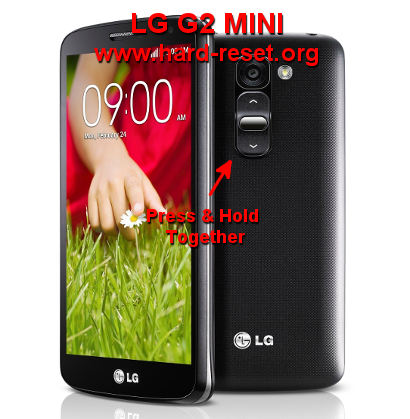
  3. Press together and hold the Power Button + Volume Down Button 
  4. While doing No.3 steps, we will see LG Logo, at this time we can release Power Button (keep press Volume Down Button)
  5. Wait until the LCD phone show Factory data reset display, then we can releaseVolume Down Button (nothing pressed now)
  6. If the the text appear, then release the button, after that we will enter some menu
  7. Choose Factory Reset using Volume Button, and press Power Button to Enter or OK
  8. The LG G2 MINI D618 & D620 will continue master reset, wait for several minutes until the the phone start like new again.

How to Restore and Reinstall Clean Android Operating system / firmware at LG G2 MINI D618 & D620?
LG G2 MINI D618 & D620 use Android Kitkat as factory default operating system or firmware. We have to know that the source file of factory default operating system already saved safely inside LG G2 MINI D618 & D620 ROM. When we think that LG G2 MINI D618 & D620 operating system corrupt or damage, then we can reinstall or restore the factory default OS using hard reset or master format steps above. So everyone can do hard reset or master format without need to copy or connect our LG G2 MINI D618 & D620 to other device or gadgets. But please always remember to backup any important data before doing reinstall or restoring the default firmware at our LG G2 MINI D618 & D620.

How to Unlock or Fix or Bypass or Solutions for LG G2 MINI D618 & D620 forgot password code or security lock screen pattern or pin (lost password)?
It is very recommended to give more security protections at our LG G2 MINI D618 & D620. There are several options that we can choose. LG also have own security protection which call Knock Code from Setting > Display Tab > Lock screen menu. But we also recommended to use screen lock pattern for faster and easy access for any one, but some users also still like to use Password Pin protection. Please remember to give Backup PIN after give the security protection. This Backup PIN have functions to unlock forgotten security protection when we forgot the answer. Basically we also can bypass or unlock forgotten security screen lock pattern or password PIN or Knock Code protection using Google account or Gmail username and password. So, after we try to unlock the forgotten main answer with Backup PIN or we also forget the Backup PIN then we can try to restore using Gmail account that we have already signed in before. Try to give several time wrong answer until the phone freeze for several seconds, at this time we will find Forgot Password / Pattern button, press this button for bypass or unlock using Google account. If we still can not access the Google account, then we have to do hard reset or master format using Hardware Button steps above.

How to Improve Performance LG G2 MINI D618 & D620 to make run more faster?
We can use LG G2 MINI D618 & D620 to play music, video, doing job, playing games and many activity without problem because it have Quad Core processor and 1GB RAM. But we have to remember all applications need memory to run. If we install or try some applications from Google Play Store, some of them will keep run in the background to wait for command or data update, and all of them also need memory and processor resources when running, this process sometime will make our LG G2 MINI D618 & D620 performance become slowly. Some users does not aware about background process because the application does not give any warning. Therefore, we suggest to uninstall not use applications. If we want to make our LG G2 MINI D618 & D620 performance faster like new, then we have to consider doing hard reset or master format.

Is That Any Secret Code for Doing Format LG G2 MINI D618 & D620?
There is no secret hidden code for LG G2 MINI D618 & D620 to make it back to factory default. Do the options above to hard reset it.


The information from this page describe about hard reset lg d618,lg d620 hard reset,HARD RESET LG D620,hard reset lg g2 mini,Hard reset d618,how to hard reset lg d620,lg-d618 hard reset,hard reset g2 mini,reset lg d618,lg d618. If you need another resource for hard reset, use search function at this homepage or find from our related posts.

How to Easily Master Format SONY XPERIA T2 ULTRA / T2 ULTRA DUAL (D5303 / D5306 / D5316 / XM50t / D5322 / XM50h) with Safety Hard Reset?

Tips and tricks for solve SONY XPERIA T2 ULTRA (D5303 / D5306 / D5316 / XM50t) problems. For users who would like to have bigger LCD screen smartphone, but does not like to have tablet which much more bigger for daily usage, then we can choose 6 inches phablet from Sony which have name SONY XPERIA T2 ULTRA, this phone have several specification model with code name Tianchi or D5303 or D5306 or D5316 or XM50t for some little different at network function, but all Sony Xperia T2 Ultra have minimum 3G GSM HSDPA Network data connection. Although some of high spec Sony smartphone has waterproof and dust-proof capabilities, but this phone does not have that functions, so please remember to stay away from water. There are also SONY XPERIA T2 ULTRA DUAL which have dual simcard GSM slot ON together, the code name for SONY XPERIA T2 ULTRA DUAL are Tianchi or  D5322, XM50h.

What is Advantage of SONY XPERIA T2 ULTRA (D5303 / D5306 / D5316 / XM50t) & XPERIA T2 ULTRA DUAL (D5322 / XM50h) Specifications:
GSM 3G HSDPA and 4G LTE
LCD 6 inches touch screen with Triluminos display
Mobile BRAVIA engine 2
Internal memory 8 GB
RAM 1GB
External memory microSD, up to 32 GB
Main Camera 13 MP, 4128 x 3096 pixels, autofocus, LED flash
Front camera 1MP for Video conference
Processor Quad-core 1.4 GHz Qualcomm
GPU Adreno 305
Operating system Android OS, v4.3 (Jelly Bean) can be upgrade to v4.4.2 (KitKat)
Battery Li-Ion 3000 mAh

How to Fix or Problem Solving for Recovery SONY XPERIA T2 ULTRA (D5303 / D5306 / D5316 / XM50t) & XPERIA T2 ULTRA DUAL (D5322 / XM50h) hang or not responding or malfunctions or stuck or freezing or bricked ?
For better performance of Android smartphone, the SONY XPERIA T2 ULTRA (D5303 / D5306 / D5316 / XM50t) & XPERIA T2 ULTRA DUAL (D5322 / XM50h) have 1MB RAM and Quad Core processor with 1.4Ghz clock speed. We can install several applications from Google Play Store. But we have to know that not all applications are compatible with our SONY XPERIA T2 ULTRA (D5303 / D5306 / D5316 / XM50t) & XPERIA T2 ULTRA DUAL (D5322 / XM50h), some applications also contain bad script that can make our phone become trouble like hang or bricks or broken or frozen or blank or boot loop or LCD touch screen not responding. At this situations we need to force soft reset or force reboot to clean up temporary files or caches that can make our phone become trouble. If the SONY XPERIA T2 ULTRA (D5303 / D5306 / D5316 / XM50t) & XPERIA T2 ULTRA DUAL (D5322 / XM50h) still get the same problem, then we should have to do hard reset or master format. But please always do backup before doing hard reset or master format, because all data and installed applications will be removed or wipe from this phone when hard reset process finish.

How to Soft Reset or Reboot or Restart SONY XPERIA T2 ULTRA (D5303 / D5306 / D5316 / XM50t) ?
When our SONY XPERIA T2 ULTRA & XPERIA T2 ULTRA DUAL get trouble in the middle of running applications and the LCD not responsive with our finger touch, then we should have to force soft reset or force reboot or force restart to delete any temporary files or caches from internal memory. There is a small reset button pin hardware which located beside micro SIM card location, near the headphone jack. We will find small reset button pin and should press with small stick like paper clips or something like that. Press and hold several seconds that small button until the phone turn OFF or Shutdown Completely. After that we can press POWER BUTTON again to turn on the SONY XPERIA T2 ULTRA (D5303 / D5306 / D5316 / XM50t) & XPERIA T2 ULTRA DUAL (D5322 / XM50h). This process is safe to do anytime because it will not remove or wipe or delete any important data, just restart the phone and remove some temporary files which usually created by the applications.

#Option 1, Hard Reset SONY XPERIA T2 ULTRA (D5303 / D5306 / D5316 / XM50t) & XPERIA T2 ULTRA DUAL (D5322 / XM50h) with Software Menu :
  1. Make sure the battery is charge properly
  2. Turn on SONY XPERIA T2 ULTRA (D5303 / D5306 / D5316 / XM50t) & XPERIA T2 ULTRA DUAL (D5322 / XM50h) smartphone
  3. Don’t forget to backup all important data
  4. Go to menu: Setting > Backup & reset > Factory Data Reset > Reset Phone
  5. Choose Erase everything to continue and confirm you ready to do the format SONY XPERIA T2 ULTRA (D5303 / D5306 / D5316 / XM50t) & XPERIA T2 ULTRA DUAL (D5322 / XM50h)
  6. The SONY XPERIA T2 ULTRA (D5303 / D5306 / D5316 / XM50t) & XPERIA T2 ULTRA DUAL (D5322 / XM50h) will continue the step until ready to use in clean factory default.

#Option 2, Hard Reset SONY XPERIA T2 ULTRA (D5303 / D5306 / D5316 / XM50t) & XPERIA T2 ULTRA DUAL (D5322 / XM50h) with Flashtool applications:
  1. Flashtool in the applications from Sony can be download from Sony website.
  2. Flashtool software need to installed in you computer and ready with USB data cable
  3. Make sure SONY XPERIA T2 ULTRA (D5303 / D5306 / D5316 / XM50t) & XPERIA T2 ULTRA DUAL (D5322 / XM50h) battery is charge properly or full charge
  4. Power off SONY XPERIA T2 ULTRA (D5303 / D5306 / D5316 / XM50t) & XPERIA T2 ULTRA DUAL (D5322 / XM50h)
  5. Boot SONY XPERIA T2 ULTRA (D5303 / D5306 / D5316 / XM50t) & XPERIA T2 ULTRA DUAL (D5322 / XM50h) to flashmode with using: Volume Down Button and connect to USB cable at No.1 above
  6. Follow the menu at you computer display, it is easy to understand the steps.

#Option 3, Hard Reset SONY XPERIA T2 ULTRA (D5303 / D5306 / D5316 / XM50t) & XPERIA T2 ULTRA DUAL (D5322 / XM50h) with Hardware Key Button:
  1. Make sure the battery fully charge
  2. Do not forget to backup all important data
  3. Turn off the SONY XPERIA T2 ULTRA (D5303 / D5306 / D5316 / XM50t) & XPERIA T2 ULTRA DUAL (D5322 / XM50h)
  4. Press and Hold together: Power Button + Volume Up Button for several seconds
  5. Follow the menu at LCD screen to continue the hard reset SONY XPERIA T2 ULTRA (D5303 / D5306 / D5316 / XM50t) & XPERIA T2 ULTRA DUAL (D5322 / XM50h)

#Option 4, Hard Reset SONY XPERIA T2 ULTRA (D5303 / D5306 / D5316 / XM50t) & XPERIA T2 ULTRA DUAL (D5322 / XM50h) with PC Companion Software from Computer
  1. Please Make Sure the Battery not Empty
  2. PC Companion is default applications for Sony Smartphone which can be download from Sony Website
  3. After install at our computer, open PC Companion Applications
  4. Before connect to phone, please choose Phone Update and follow several step at PC Companion
  5. At some menu, PC Companion will tell us how to connect the phone with PC Companion using USB cable and press the Volume Down button
  6. Finish the PC Companion step and until it doing Factory Reset to SONY XPERIA T2 ULTRA (D5303 / D5306 / D5316 / XM50t) & XPERIA T2 ULTRA DUAL (D5322 / XM50h) to factory default Android operating system.

How to Restore and Reinstall Clean Android Operating system / firmware at SONY XPERIA T2 ULTRA (D5303 / D5306 / D5316 / XM50t) & XPERIA T2 ULTRA DUAL (D5322 / XM50h) ?
When the first time we buy SONY XPERIA T2 ULTRA & XPERIA T2 ULTRA DUAL, this phone ship with Android Jelly Bean v.4.3.  If after use several time the operating system damage or trouble then we need to reinstall or restore clean factory default Android operating system. We should know that the factory default operating system file source already saved inside SONY XPERIA T2 ULTRA & XPERIA T2 ULTRA DUAL ROM safely. Therefore we does not need to copy from or connect to other device to do reinstall. Just follow one of several options above to do hard reset, then the factory default operating system or firmware will be reinstall or restore automatically.

How to Unlock or Fix or Bypass or Solutions for SONY XPERIA T2 ULTRA (D5303 / D5306 / D5316 / XM50t) & XPERIA T2 ULTRA DUAL (D5322 / XM50h) forgot password code or security lock screen pattern or pin (lost password)?
If we have many important data or pictures or movies, then we should always give security protections to safe our data while the phone away from us or when the phone is miss from our hand. There are several options that we can use to protect our SONY XPERIA T2 ULTRA & XPERIA T2 ULTRA DUAL. We are recommended to use screen lock pattern security protection for faster and easy unlock when we want to use, but some users also like to use password pin protection. However, the problem happen when we forget the answer of our security protections. But do not worry about this problem, because Android have easy steps to unlock or bypass or open forgotten security protections using Google account or Gmail username and password. Please try to give wrong answer several time until the phone locked or freeze about 30 seconds. At this time we will find Forgot Password / Pattern button, press this button, then SONY XPERIA T2 ULTRA & XPERIA T2 ULTRA DUAL will ask for Gmail account that we have already signed in before. Please make sure the Internet connection active when we want to bypass using Google account. If we can not access Google account, then we have to do hard reset using Hardware Button or PC Companion like options steps above.

How to Improve Performance SONY XPERIA T2 ULTRA (D5303 / D5306 / D5316 / XM50t) & XPERIA T2 ULTRA DUAL (D5322 / XM50h) to make run more faster?
SONY XPERIA T2 ULTRA & XPERIA T2 ULTRA DUAL have quad core with 1.4 Ghz speed. The Internal memory have 1GB for multitasking applications. When we download the applications from Google Play Store, some applications will be keep running in the memory to wait for some update for command to work. Every applications will need some amount of RAM and also processor resources when they run. Therefore if there are too many applications run in the background, then SONY XPERIA T2 ULTRA & XPERIA T2 ULTRA DUAL will run more slowly. Please try to remove or uninstall some not use applications. If we want to make our SONY XPERIA T2 ULTRA & XPERIA T2 ULTRA DUAL run faster again like new, then we have to consider doing hard reset or master format.

Is That Any Secret Code for Doing Format SONY XPERIA T2 ULTRA (D5303 / D5306 / D5316 / XM50t) & XPERIA T2 ULTRA DUAL (D5322 / XM50h) ?
There is no secret hidden code for SONY XPERIA T2 ULTRA (D5303 / D5306 / D5316 / XM50t) & XPERIA T2 ULTRA DUAL (D5322 / XM50h) to make it back to factory default. Do the options above to hard reset it.

How to Upgrade or Update SONY XPERIA T2 ULTRA (D5303 / D5306 / D5316 / XM50t) & XPERIA T2 ULTRA DUAL (D5322 / XM50h) to Android Kitkat or Android L Operating System / Firmware ?
Now, we can upgrade the SONY XPERIA T2 ULTRA & XPERIA T2 ULTRA DUAL operating system with Android Kitkat 4.4 operating system or firmware. The update comes with OTA or Over The Air with Internet connection. Please find the OS update at SONY XPERIA T2 ULTRA & XPERIA T2 ULTRA DUAL using Menu Settings > About phone > Software updates > System updates. Please consider to use Wifi data connection when download the firmware update, because the file size is quite big for use with GSM data network connection. The Android L still not available when we create this information, but we will see later from Sony update information.
The information from this page describe about sony xperia t2 ultra hard reset,Sony t2 ultra hard reset,how to format sony xperia t2 ultra,hard reset sony xperia t2 ultra,sony xperia t2 hard reset,t2 ultra hard reset,what is the password of sony Xperia t2 ultra dual d5322,hard reset sony t2 ultra,hard reset xperia t2 ultra,how to hard reset sony xperia t2. If you need another resource for hard reset, use search function at this homepage or find from our related posts.